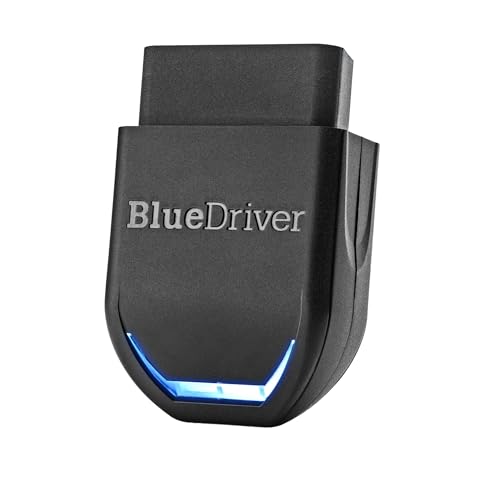
Most OBD2 scanner connection problems are fixed by turning the ignition on, deleting old Bluetooth pairings, checking the car's OBD2 fuse, and ensuring app compatibility.
You plug in your OBD2 scanner, open the app, and nothing happens. No connection, no data, just frustration. Connection issues are the most common complaint among OBD2 scanner users. Our editorial team compared specifications, buyer feedback and key decision factors to compile this troubleshooting guide. Whether you have a Bluetooth, WiFi, or wired scanner, these steps will help you get back on the road to reading diagnostics.
Why Your OBD2 Scanner Won't Connect
Understanding the root cause saves time. Connection failures generally fall into four categories: power issues (fuse or ignition), pairing problems (Bluetooth/WiFi), compatibility mismatches (vehicle or app), and hardware defects. Let's address each systematically. Power issues are the most frequent: if the OBD2 port doesn't receive power, the scanner won't turn on. This can be due to a blown fuse, a faulty ignition switch, or the car being in a low-power state. Pairing problems often stem from the scanner being already connected to another device or not being in pairing mode. Compatibility mismatches occur when the scanner uses a protocol not supported by your vehicle (e.g., some older scanners only support ISO 9141, while many modern cars use CAN). Hardware defects include damaged pins, internal component failure, or a dead battery in the scanner itself.
How to Fix OBD2 Scanner Connection Problems (Step by Step)
- Turn the ignition on. Most scanners require the car's ignition to be in the 'ON' position (engine can be off or running). Without power to the OBD2 port, the scanner won't wake up. Check that the scanner's LED lights up. If the LED is off, the port likely has no power. Some vehicles have a separate power relay for the OBD2 port; ensure the ignition is fully on, not just accessory mode.
- Check the OBD2 port fuse. Locate your vehicle's fuse box (often under the dashboard or hood). Find the fuse labeled 'CIGAR', 'ACC', 'OBD', or 'POWER OUTLET'. Use a fuse tester or multimeter to verify it's not blown. Replace if necessary with the same amperage. A blown fuse is often caused by a short circuit in the scanner or port. If the new fuse blows immediately, there may be a wiring issue in the vehicle. Also check the scanner's internal fuse if it has one (some models have a replaceable fuse inside the unit).
- Delete old Bluetooth pairings. On your phone, go to Bluetooth settings and remove any previous pairings with the scanner. Then put the scanner in pairing mode (usually by plugging it in with ignition on). Search for new devices and pair again. For WiFi scanners, forget the network and reconnect. Make sure the scanner is not connected to another phone or tablet. Some scanners have a limit on the number of paired devices; clearing the list can help.
- Verify vehicle compatibility. Ensure your car is OBD2 compliant (most gasoline vehicles from 1996 onward in the US, diesel from 2004). Some scanners only support certain protocols (e.g., CAN, KWP2000). Check the scanner's specifications against your vehicle's OBD2 protocol. You can find your vehicle's protocol in the owner's manual or online. For example, most 2008+ cars use CAN, while older vehicles may use ISO 9141 or KWP. If your scanner does not support the correct protocol, it will not communicate.
- Try a different OBD2 app. App issues are common. Download a free app like Torque (Android) or OBD Fusion (iOS) to test connectivity. If it works, the problem is your original app. Update apps and clear cache if needed. Some apps require specific settings, such as selecting the correct protocol manually. Also ensure the app has permission to access Bluetooth and location. On iOS, go to Settings > Privacy > Bluetooth to enable the app.
- Update scanner firmware. Some scanners (like ELM327 clones) have firmware that can be updated via PC or app. Check the manufacturer's website for updates. Outdated firmware can cause connection drops or protocol errors. For ELM327-based scanners, firmware updates can sometimes fix compatibility issues with newer vehicles. Be cautious with clone devices, as they may not have official updates.
- Inspect the OBD2 connector and pins. Look for bent or corroded pins on the scanner plug or the car's port. Gently straighten bent pins with a small tool. Clean any corrosion with electrical contact cleaner. A bent pin can prevent proper electrical contact, causing intermittent or no connection. Also check for debris or dirt in the port. Use a flashlight to inspect the port inside the car; sometimes coins or dust can obstruct the connection.
- Test on another vehicle. If possible, try the scanner on a different OBD2-compliant car. If it connects, the issue is with your first vehicle. If not, the scanner may be defective. This step helps isolate whether the problem is the scanner or the car. If the scanner works on another car, check your vehicle's OBD2 port for power and protocol compatibility.
When to Replace Your OBD2 Scanner
If you've tried all steps and the scanner still won't connect, it may be time for a replacement. Signs of a dead scanner: no LED light even with ignition on, physical damage to the plug, or it fails to pair with any device. Budget scanners (especially cheap ELM327 clones) have high failure rates. Consider buying a reputable brand with good customer support and a warranty. Our editorial team recommends checking buyer feedback for reliability before purchasing. Look for scanners with positive reviews regarding connection stability and compatibility with a wide range of vehicles. A scanner with a replaceable cable or external antenna may offer better longevity.
Additional Troubleshooting Tips
- Bluetooth interference: Turn off other Bluetooth devices (headsets, speakers) near the car. Move your phone closer to the scanner. Bluetooth signals can be blocked by metal objects; keep the phone within a few feet of the scanner. Also avoid using the scanner near other wireless devices like Wi-Fi routers.
- WiFi scanner issues: Ensure your phone is connected to the scanner's WiFi network (not your home WiFi). Disable mobile data if needed. Some WiFi scanners require a static IP configuration; check the app settings. If the connection drops, try changing the WiFi channel on the scanner (if supported).
- App permissions: Grant the OBD app location permission (required for Bluetooth scanning on Android 6+ and iOS 13+). Without location permission, the app may not be able to discover Bluetooth devices. On Android, go to Settings > Apps > [App] > Permissions and enable Location. On iOS, go to Settings > Privacy > Location Services and enable for the app.
- Reset the scanner: Unplug the scanner, wait 30 seconds, then plug it back in. Some scanners have a reset button (a small pinhole) that you can press with a paperclip. This can clear any temporary glitches in the scanner's firmware.
- Check for OBD2 port damage: If the car's port has a loose connection or broken pins, you may need a professional repair. The port can become loose over time from repeated plugging. A mechanic can test the port with a breakout box to verify wiring integrity.
- Battery voltage: A weak car battery (below 12V) can cause the scanner to malfunction. Test the battery voltage with a multimeter. If low, charge the battery or jump-start the car. Some scanners require a stable voltage to operate correctly.
Common OBD2 Scanner Connection Scenarios
Different scanner types have unique quirks. For Bluetooth scanners, ensure the scanner is not already paired to another device; some scanners can only be paired with one phone at a time. For WiFi scanners, the connection process often involves connecting your phone to the scanner's ad-hoc network, which may require forgetting your home network temporarily. Wired USB scanners may need driver installation on a laptop; check Device Manager for unrecognized devices. If using a USB scanner with a smartphone via an OTG adapter, ensure the phone supports USB host mode. Each scenario requires specific steps, but the fundamental checks (ignition, fuse, compatibility) apply universally.