USB Hubs
Best USB Hubs for MacBook Pro and Air
5 picks compared
8 min read
ProductPickly is reader-supported. When you buy through links on our site, we may earn an affiliate commission at no extra cost to you. It never changes our picks.
The short answerThe Anker 7-in-1 USB-C Hub is our top pick for most MacBook users. It offers a balanced mix of ports, reliable 85W power delivery, and a compact aluminum design that matches MacBooks perfectly.
?How we pickedWe compare published specifications, safety certifications and thousands of verified owner reviews, and we do not physically test every unit. Read the full process in our review methodology.
Anker 7-in-1 USB-C Hub
★★★★★ 4.7 / 5 Best overall
A perfect match for MacBook Pro and Air. It delivers 85W power delivery, 4K HDMI, and multiple USB ports in a sleek aluminum body that feels native to Apple's design language.
Ports 7 (HDMI, 2x USB-A, USB-C PD, SD/TF, 3.5mm)Power delivery 85WVideo output 4K@30Hz
- Reliable 85W pass-through charging
- Compact and lightweight
- SD and microSD slots for creators
- No Thunderbolt 3 support
- HDMI limited to 30Hz
Best for: Most MacBook Pro and Air users who need a versatile hub for daily work and travel.
Buy it if: Students, professionals, and anyone who wants a dependable hub that covers all basic needs without breaking the bank.
Skip it if: Video editors needing 60Hz 4K output or Thunderbolt daisy-chaining.
Alternative to consider: Satechi Aluminum Hub
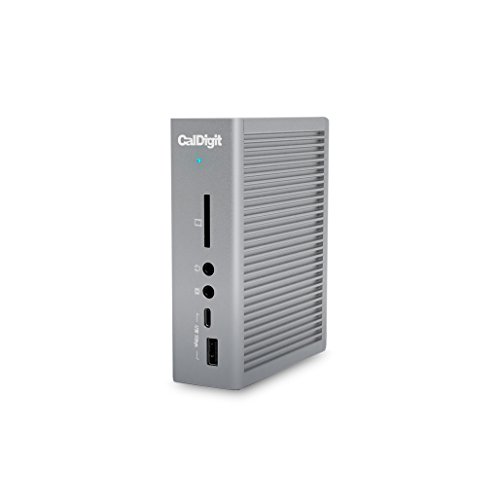
CalDigit TS3 Plus Thunderbolt 3 Dock
★★★★★ 4.8 / 5 Best for pros
A powerhouse dock for creative professionals. It offers 15 ports, 87W charging, and dual 4K display support, making it a desktop hub that transforms your MacBook into a full workstation.
Ports 15 (Thunderbolt 3, 5x USB-A, DisplayPort, Ethernet, etc.)Power delivery 87WVideo output Dual 4K@60Hz
- Extensive port selection
- Dual 4K display support
- Rock-solid build quality
- Expensive
- Requires Thunderbolt 3 port (all MacBooks have it)
Best for: Professional users who need maximum connectivity and high-resolution external displays.
Buy it if: Video editors, photographers, and developers who work with multiple peripherals and monitors.
Skip it if: Casual users who don't need that many ports or are on a tight budget.
Alternative to consider: OWC Thunderbolt 3 Dock
Satechi Aluminum USB-C Hub
★★★★★ 4.5 / 5 Best budget
An affordable hub that doesn't skimp on essentials. It provides 4K HDMI, 60W power delivery, and a card reader, all in a slim aluminum shell that matches Apple's aesthetic.
Ports 5 (HDMI, 2x USB-A, USB-C PD, SD)Power delivery 60WVideo output 4K@30Hz
- Budget-friendly price
- Sleek design
- Good for basic needs
- Lower power delivery (60W)
- No Ethernet or audio jack
Best for: MacBook Air and MacBook Pro users who need a simple, affordable hub for presentations and file transfers.
Buy it if: Students and everyday users who want a reliable hub without extra features.
Skip it if: Power users who need high-wattage charging or multiple displays.
Alternative to consider: Anker 7-in-1 USB-C Hub
HyperDrive 6-in-1 USB-C Hub
★★★★★ 4.4 / 5 Best for travel
Ultra-portable and powerful. This hub packs 6 ports, including 100W pass-through charging and 4K HDMI, into a tiny footprint that's perfect for on-the-go productivity.
Ports 6 (HDMI, 2x USB-A, USB-C PD, SD/TF, Thunderbolt 3)Power delivery 100WVideo output 4K@30Hz
- Very compact and lightweight
- High 100W power delivery
- Thunderbolt 3 port for data
- Cable is short
- No Ethernet
Best for: Travelers and remote workers who need a full-featured hub that fits in a pocket.
Buy it if: Frequent flyers, digital nomads, and anyone who works from coffee shops.
Skip it if: Users who need a fixed desktop setup with many ports.
Alternative to consider: Anker 7-in-1 USB-C Hub
Apple USB-C Digital AV Multiport Adapter
★★★★★ 4.3 / 5 Apple's own
A simple, first-party solution for MacBook Air users. It offers HDMI, USB-A, and USB-C pass-through charging, all in Apple's signature white plastic design.
Ports 3 (HDMI, USB-A, USB-C)Power delivery Up to 60WVideo output 4K@30Hz
- Made by Apple, guaranteed compatibility
- Compact and light
- Simple plug-and-play
- Limited ports
- Expensive for what it offers
- White plastic can yellow over time
Best for: MacBook Air users who want a no-fuss hub for presentations and basic connectivity.
Buy it if: Apple purists who prefer first-party accessories and need just HDMI and USB-A.
Skip it if: Users who need multiple USB ports or card readers.
Alternative to consider: Satechi Aluminum USB-C Hub
MacBooks are famous for their sleek design and portability, but that comes at a cost: limited ports. Apple's laptops now only feature Thunderbolt 3 (USB-C) ports, which means you need a hub to connect your USB-A devices, HDMI displays, SD cards, and more. But not all hubs are created equal, especially when it comes to macOS compatibility. Our editorial team compared specifications, buyer feedback, and key decision factors to bring you the best USB hubs for MacBook Pro and Air.
What to Look for in a USB-C Hub for MacBook
When shopping for a hub, consider these essential factors:
- Port selection: Identify which ports you need daily. Common options include USB-A, HDMI, SD card slots, Ethernet, and audio jacks. More ports aren't always better; choose a hub that matches your workflow.
- Power delivery (PD): A hub with PD allows you to charge your MacBook while using other ports. Look for at least 60W for MacBook Pro 13-inch and 85W+ for 16-inch models. Some hubs have a dedicated USB-C PD port that supports up to 100W.
- Video output: If you plan to connect an external monitor, check the hub's HDMI or DisplayPort capabilities. Most hubs support 4K at 30Hz, but some offer 60Hz for smoother visuals. For dual monitors, you'll need a Thunderbolt 3 dock.
- Design and build: A hub that matches your MacBook's aluminum finish looks great and feels premium. Also consider size and weight if you travel often.
- Compatibility: Ensure the hub is explicitly compatible with macOS. Some hubs may require drivers or have limited functionality on Macs. Reading user reviews can help identify any issues.
Common Mistakes to Avoid
Ignoring Power Delivery Wattage
One of the most common mistakes is buying a hub without checking its power delivery wattage. If the hub only provides 30W, it may not charge your 16-inch MacBook Pro at full speed, leading to slow charging or even battery drain under heavy load. Always match the hub's PD to your MacBook's power adapter wattage.
Overlooking macOS Compatibility
Some hubs are designed primarily for Windows and may have limited macOS support. For example, Ethernet ports might not work without drivers, or video output may be glitchy. Stick to reputable brands known for Mac compatibility, and check recent reviews from Mac users.
Choosing Too Many Ports
While it's tempting to get a hub with every port imaginable, more ports often mean a bulkier design and higher price. Think about your actual needs. If you only need USB-A and HDMI, a simple adapter might be enough. Overbuying can lead to wasted money and a less portable setup.
Not Considering Thunderbolt 3
If you're a professional who needs high-speed data transfer (up to 40Gbps) or dual 4K displays, a Thunderbolt 3 dock is worth the investment. USB-C hubs typically max out at 10Gbps and single 4K output. Assess your workflow to decide if Thunderbolt is necessary.
Our Top Picks Explained
We selected five hubs that cater to different needs and budgets. The Anker 7-in-1 is our overall favorite for its balance of features and price. The CalDigit TS3 Plus is a desktop powerhouse for pros. The Satechi Aluminum Hub is a budget-friendly option that doesn't compromise on design. The HyperDrive 6-in-1 is perfect for travelers, and the Apple adapter is a simple, reliable choice for MacBook Air users.
Frequently Asked Questions
We've answered common questions in our FAQ section above to help you make an informed decision. If you have more specific queries, check the product pages on Amazon for detailed specifications and user reviews.
Questions people ask
Will any USB-C hub work with my MacBook Pro or Air?
Most USB-C hubs are compatible with MacBooks, but for best performance, choose one that supports macOS and offers power delivery. Some hubs may require drivers or may not support all features on Macs. Check reviews and specifications to ensure macOS compatibility.
How much power delivery do I need for my MacBook?
MacBook Air models typically need 30W, while MacBook Pro 13-inch needs 61W and 16-inch needs 96W. A hub with at least 60W power delivery is good for most, but if you have a 16-inch Pro, look for 85W or higher to charge at full speed.
Can I connect two external monitors with a USB-C hub?
It depends on the hub and your MacBook model. Many hubs support one 4K display at 30Hz or 60Hz. For dual monitors, you may need a Thunderbolt 3 dock like the CalDigit TS3 Plus, which supports dual 4K@60Hz. Check your MacBook's specs for display support.
Do I need a Thunderbolt 3 hub or a USB-C hub?
Thunderbolt 3 hubs offer faster speeds and more features, like daisy-chaining and higher display support, but they are more expensive. For most users, a USB-C hub is sufficient for everyday tasks. If you're a professional with high-bandwidth needs, consider Thunderbolt 3.
Why does my hub not charge my MacBook?
Make sure the hub is connected to a power source using its power adapter. Also, check if the hub's power delivery wattage is sufficient for your MacBook. Some hubs only pass through power, not provide it, so ensure you're using the correct cable and adapter.
The bottom lineSo which one?
For most MacBook users, the Anker 7-in-1 USB-C Hub offers the best balance of price, performance, and design. If you need professional-grade features, invest in the CalDigit TS3 Plus. For budget-conscious buyers, the Satechi Aluminum Hub is a solid choice.